
20 Steps to Increase the Speed of Your Website
UPDATED on March 5, 2017 (originally published on Jan 7, 2016)
A fast website is critical to visitor retention, as is reported in dozens of posts on this topic. This post addresses ways to speed up a WordPress website, and includes some notes relevant to our experience at High Peaks Media (i.e., some tech notes). For testing, use GMetrix load speed test, Pingdom, or Google Page Speed Insights. Do not be alarmed at moderate (or even low) scores on results for WordPress websites. Sometimes reported problem areas are not possible to fix. The first goal is to improve the load time and the load score!
Summary
Load speed is a result of many contributing factors. If I were to pick the ‘low-hanging fruit’ of the steps outline below, I would (for small websites), implement the following, roughly in this order: setup a CDN service such as Cloudflare, install a caching plugin such as W3 Total Cache or WP Fastest Cache (gzip, minify, leverage browser caching, with possible premium image optimization and CDN integration), compress images using a plugin such as Shortpixel, implement cpanel Optimization, install Lazy Load and WP Optimizer plugins, , and consider static content delivery through Amazon S3. The exact order would depend on the circumstances.
This post needs updating to conform to latest conventions; see this post from the Elementor blog for a good review.
#1 Use a fast hosting service
Some host servers are faster than others! WP Engine (more expensive) and and Blue Host are commonly cited as WordPress-optimized hosting providers. Site Ground is also popular, with its Storm Solid State (SSD) servers. Cloud Hosting provides the fastest results. This site is currently hosted by A2 Hosting, using it’s Turbo charged option. Consider the costs and different tiers of service (note that we are affiliates for Site Ground, Blue Host, and Hostgator).
#2 Use a Content Delivery Network (CDN) for dynamic delivery
Content Delivery Networks (CDNs) serve dynamically cached versions of your site from multiple locations and/or the cloud. Two common CDNs are Cloudflare, MaxCDN, and KeyCDN. Cloudflare currently offers a free tier, with the most important features enabled. CDNs may partner with your hosting service (#1). For example, Cloudflare is a cpanel option with Site Ground and A2 hosting. See our recent post Fast Secure Websites on a Budget (with Cloudflare or KeyCDN).
After changing the nameservers to your CDN, check the DNS records using leafdns.com for any errors. The Chrome extension Claire will detect delivery over Cloudflare CDN. For more info on CDNs, read Why Everyone Should be Using a Content Delivery Network.
#3 Host static content on a CDN server
Static content can be delivered to the end-user from a CDN-based server network. Amazon Cloudfront, Rackspace, and the Jetpack Photon addon are examples. Note that this option may be particularly useful if other CDN-delivery options (above) are not in place, for example with standard shared hosting. Static delivery may also avoid complications on dynamic sites with shopping carts, SSL, etc.
The WordPress plugin WP Offload S3 loads to Amazon S3 (which can be integrated wtih Amazon Cloudfront) through the media uploader (the pro version takes care of existing content). Here is an excellent review of Moving WordPress Media to the Clou (note the difference between the distribution of Amazon’s static S3 servers and its Cloudfront distribution servers).
W3 Total Cache also connects to Cloudfront – see a detailed analysis here – as does the W2Cloud plugin.
#4 Provide cached versions of your site
Caching should be installed on every site. Commonly, caching is via plugins on the website, that caches pages and delivers the cached versions to end users. WP Fastest Cache offers excellent features (including mobile caching with premium version). W3 Total Cache may be the most sophistocated. WP Super Cache may be most widely known.
Caching may also be available as a cpanel option with your premium hosting provider, as in the Site Ground Super Cacher, which communicates via a plugin on the site. Generally, the SG SuperCacher plugin would replace the use of other caching plugins on the site.
#5 Use the Accelerated Mobile Pages plugin
The Accelerated Mobile Pages project, supported by Google, Twitter, and WordPress, aims to accelerate mobile delivery, especially on websites that rely on news feeds, media streams, or ad revenue. The AMP plugin helps deliver your site as a Google-cached mobile version, worldwide (see the Tech Republic post). Install the plugin AMP for WP – Accelerated Mobile Pages. Or: (1) Install the AMP-WP plugin. (2) Go to Settings > Permalinks, select the post_name permalink settings (if not already selected), and select Save Changes (this activates the plugin). (3) Validate the AMP version of your page (see the Tech Republic post for details). Related SEO and Analytics plugins may be required – see the Lockedown post.
#6 Use the Google Libraries plugin
The Use Google Library plugin has high ratings and is recommended by a number of sources (e.g., WPMUDev Post). The plugin “Allows your site to use common javascript libraries from Google’s AJAX Libraries CDN, rather than from WordPress’s own copies”.
#7 Use the Async Social Sharing plugin
The Async Social Sharing pluging loads popular social sharing widgets asynchronously after the page loads for optimal site performance (see the plugin for info, and the WPMUDev post).
#8 Optimize your site at the hosting level
Check for optimize options on the hosting cpanel of your website.
#9 Gzip compression
Gzip compresses files at the server level before sending them to browsers. Gzip is part of some optimization plugins (e.g., WP Performance Score Booster) and caching plugins (WP Fastest Cache and Zen Cache). Gzip can also be enabled by adding a few lines of code to the .htaccess file. See Gzip code here.
#10 Compress your images
I strongly recommend the online tool Tiny PNG for image compression and its plugin Compress JPG and PNG Images (you must connect the plugin via API to a Tiny PNG account). Smush.it is also highly recommended, although the free version has limitations on old sites with numerous image and the pro version is pricey – I would use it on a new site. Kraken is also popular, but the free version has a set size allocation for conversions. I like EWWW Image Optimizer for older sites with many images; EWWW offers pay as you go conversions for advanced compression options. EWWW does not resize images (see reference, and the next point).
#11 Optimize the image size
Large images take up space and load slowly. The premium version of WP Fastest Cache ($40) is very effective. You can also try Optimize Images Resizing or Imsanity or Adaptive Images for WordPress (for mobile).
#12 Add an expire header to leverage browser caching
Some caching plugins set the expire header time, as do some CDNs. See Leverage Browser Caching; use WP Fastest Cache, or try the Leveral Browser Caching Ninja plugin.
#13 Move javascript to the bottom of the page
Try Scripts to Footer (test your site after adding this plugin). Alternatvely, use W3 Total Cache; follow directions here.
#14 Clean up your database
The WordPress plugin WP Optimize cleans the database of unused drafts, deleted plugins, etc.
#15 Fix all broken links
- Google Webmaster Tools (crawl errors tab)
- Screaming Frog SEO Spider
- Ahrefs
#16 Minify CSS and JS files
A variety of plugins are available (see below), and CDNs may include their own settings. Try Autoptimize, or WP Fastest Cache, W3 Total Cache, Better WordPress Minify, or WP Minify Fix, or Merge + Minify + Refresh, or WP Super Minify. See the Elegant Themes post plugin review (bottom of post): How to Minify Your Website. Some CDN’s offer minify options (such as Cloudflare), in which case they should probably be deactivated on other plugins on the site.
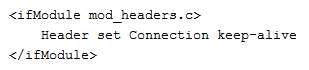
#17 Enable Keep Alive
Keep alive reduces the communication between user client machine and site server. Paste the following into the .htaccess file: (if corrupted, see Enable Keep Alive or How to Enable Keep Alive)
<br />
<ifModule mod_headers.c>
    Header set Connection keep-alive
</ifModule>
#18 Lazy load images
Load images only as they scroll into view, with BJ Lazy Load or a3 Lazy Load.
#19 Change the load order of plugins
The Plugin Organizer changes the load order of plugins on a given page.
#20 Review your website for slow plugins
Scan your website with P3 (Plugin Performance Profiler) to see if you can disable or replace plugins that will slow your site down. (This plugin may not be working as of last review in Oct, 2016).
Other Helpful Posts
How to Speed up Your WordPress Website, from Elementor (2019)
Gmetrix Guide to Optimizing WordPress
The Ultimate Mega Guide to Speeding up WordPress, from WPMUDev
Ten plugins to make WordPress blazing fast, from WPMUDev
How to Achieve 100/100 with the Google Page Speed Test Tool, from Moz
How to improve your page load speed
How To Boost Your Website’s Performance With W3 Total Cache And A CDN
Images
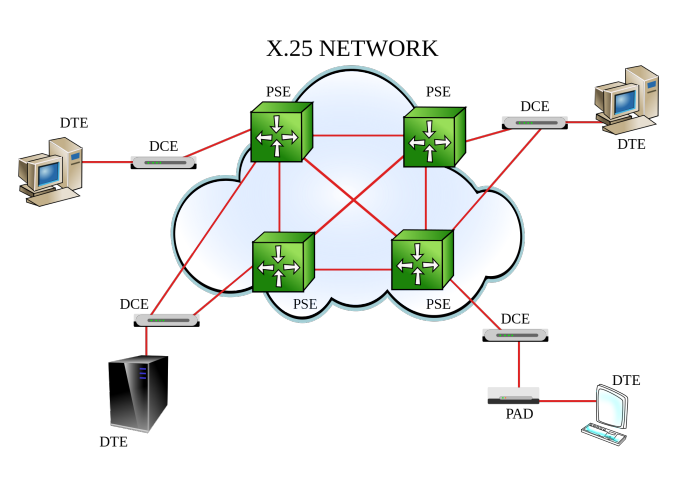
Image attribution: X-25 Network, from Wikipedia (image tagged for use with modification).



Leave a Reply
Want to join the discussion?Feel free to contribute!